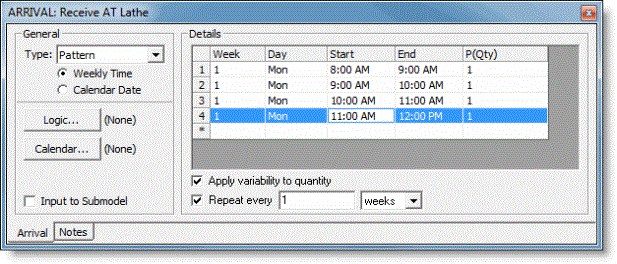
Define your arrivals based upon a custom pattern where varying quantities of entities arrive over the course of a day. Enter the week number, weekday, start and end time, and quantity to arrive during the time specified if the Pattern Arrival is set to Weekly Time. Enter the specific date, if set to Calendar Date. The Start and End times define the duration over which the quantity of entities will be randomly distributed. Each row can define a unique duration and quantity and all rows together define a custom pattern for the arriving entities. A pattern arrival is most commonly used to model the arrival of people into a system like patients into a health clinic or customers arriving into a bank.
If you use a Pattern arrival in your model, your simulation run length must be defined by either Weekly Time or Calendar Date, not Time Only. The start time for each row must also be the same or later than the end time of the previous row. See Simulation Properties for more information.
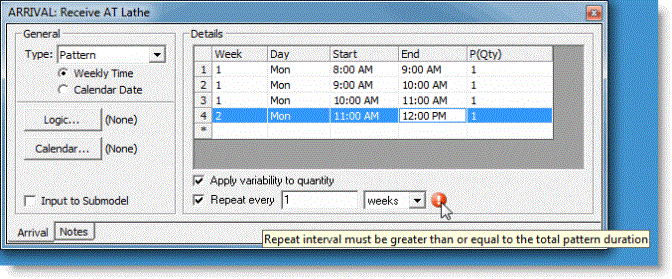
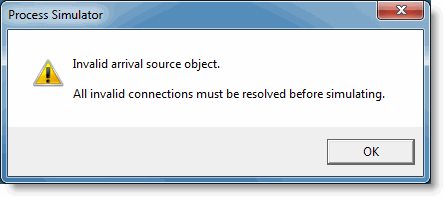
Please note: If this rule is still broken, and simulation is run, an error dialog will appear and prevent the simulation from continuing.
To correct this issue, either uncheck the Repeat every check box or correct the total pattern duration so that it is less than or equal to the repeat interval.
Values for this grid can be deleted, copied and pasted to Microsoft Office Excel by right-clicking on a cell and selecting from the popup menu. To copy data from the grid you must first select the desired rows to copy. This can be accomplished by clicking on any cell of the desired row to highlight the entire row, clicking on any cell of a row and dragging to select multiple rows, or clicking on the top-left column header to select all the rows. Once the desired rows are selected, right-click and select Copy from the menu or use the Ctrl+C hot key to copy the data to the Windows clipboard. The data can now be pasted into Excel.
When pasting data from Excel into the Pattern arrivals grid, all columns of data for each row selected are expected. Right-click and select Paste from the menu or use the Ctrl+V hot key to paste the data into the Pattern arrivals grid.
In addition, two other options are possible in the right-click menu for Pattern arrivals, Sort By Date and Modify Quantities.
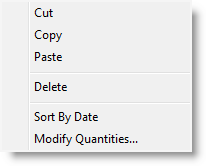
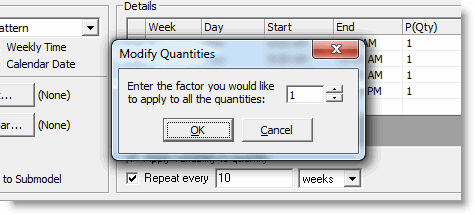
For example, if your quantity was 10 for row one, 2 for row two and 5 for row three and you applied a factor of 2 in the Modify Quantities dialog, the quantity of arrivals would be 20, 4, and 10 respectively.
© 2011 ProModel Corporation • 556 East Technology Avenue • Orem, UT 84097 • Support: 888-776-6633 • www.promodel.com